
Troubleshooting
Recar Overlay
Section titled “Recar Overlay”Disabling Overlay on specific applications
Section titled “Disabling Overlay on specific applications”Due to the nature of how Recar Overlay is implemented, it uses a system of exclusion rather than inclusion (similar to actual Discord Overlay). Some programs due to this may inherit Recar Overlay which you may wish to not include.
This can happen with the Zed editor for example, so to disable it:
DISABLE_RECAR_OVERLAY=1 zed # Replace with the program that you want to disable overlay for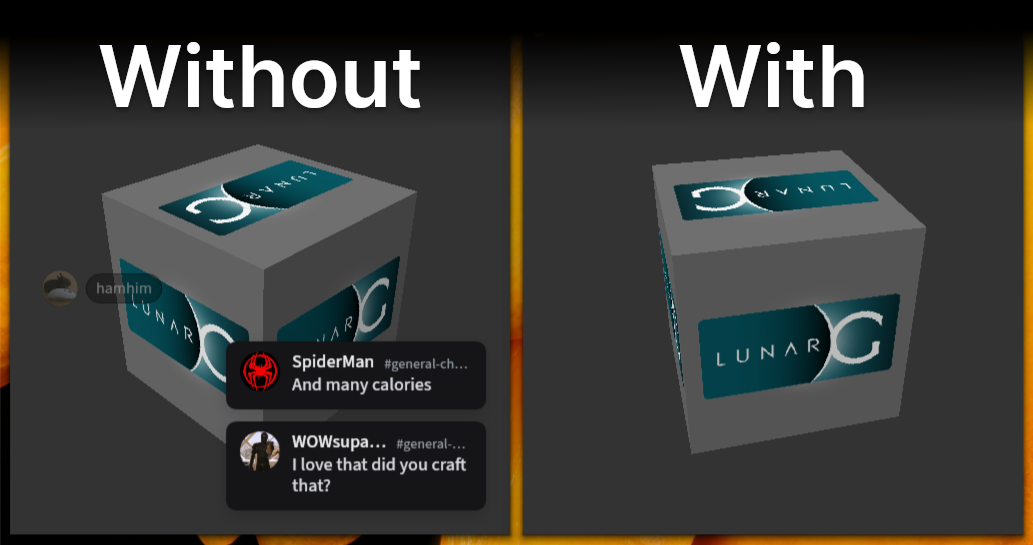
This also works with Steam applications and games by modifying launch options.
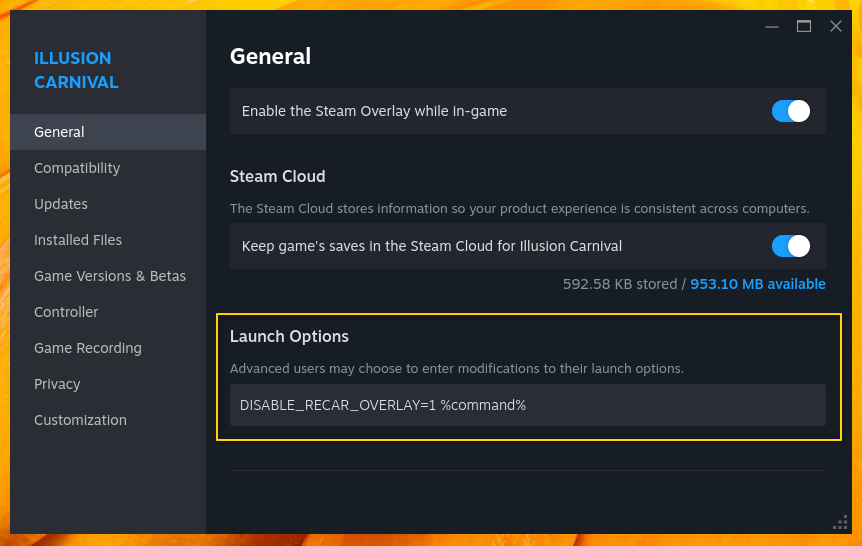
For now this is the only way to disable overlay for specific applications.
Recar Overlay not working
Section titled “Recar Overlay not working”Recar does not properly ship and install overlay functionality by default. Install it from the developer page in settings assuming you are on an official build that should ship Recar Overlay. Also, make sure it is enabled under the Overlay section in the settings page.
Please also note as of now Recar does not support OpenGL games and applications, we only support Vulkan. This includes older games running through even Proton as it may not use DXVK.
Minecraft
Section titled “Minecraft”On versions above 26.2 use the Vulkan renderer option instead of OpenGL. Any versions below that (except the snapshots of 26.2), or if OpenGL is preferred use the following options:
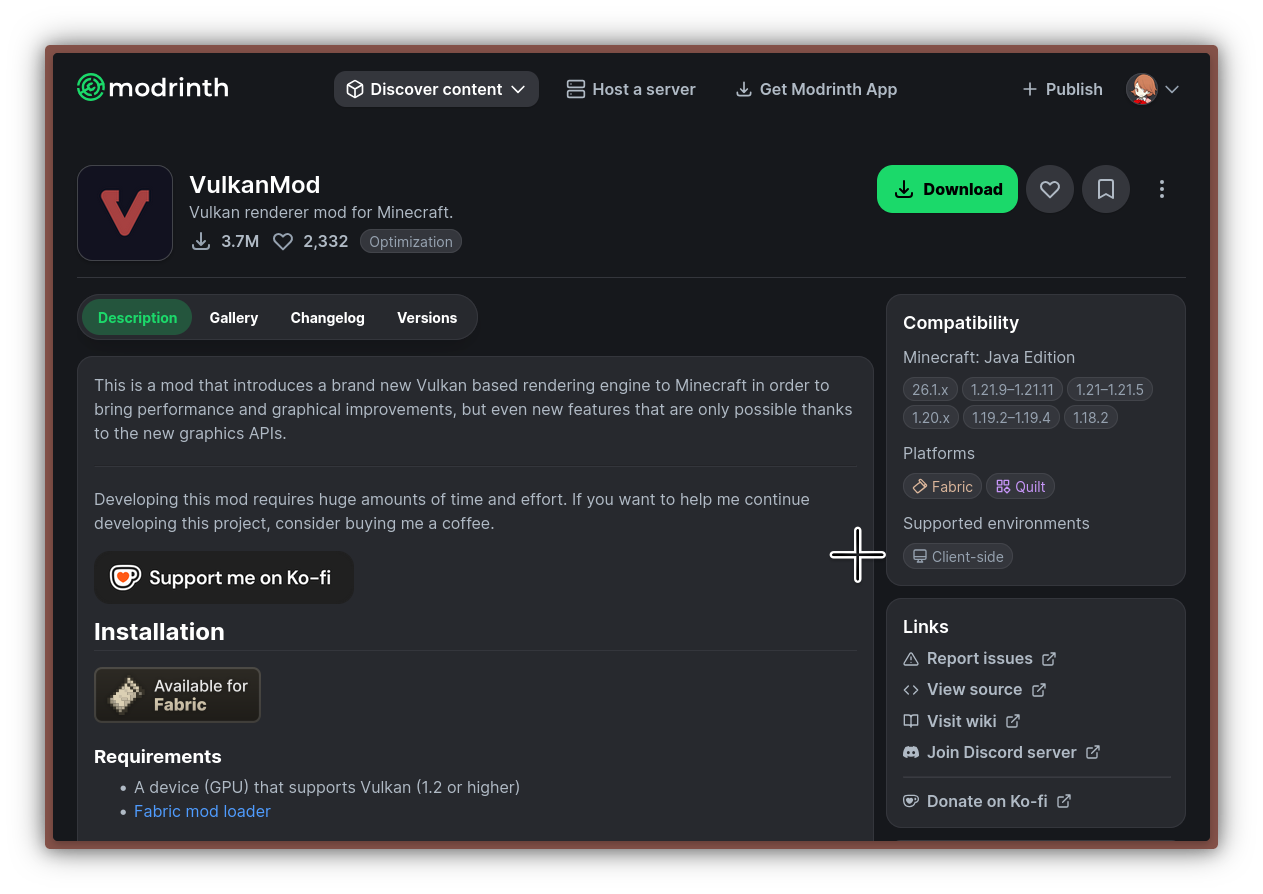
1. VulkanMod
Introduces a Vulkan based rendering engine for Minecraft. Great option for this, but may fall back in mod compatibility. Modrinth
2. Zink
It is recommended to use Prism Launcher for this as it has the easiest way to enable Zink. This is the most mod compatible way to do this.
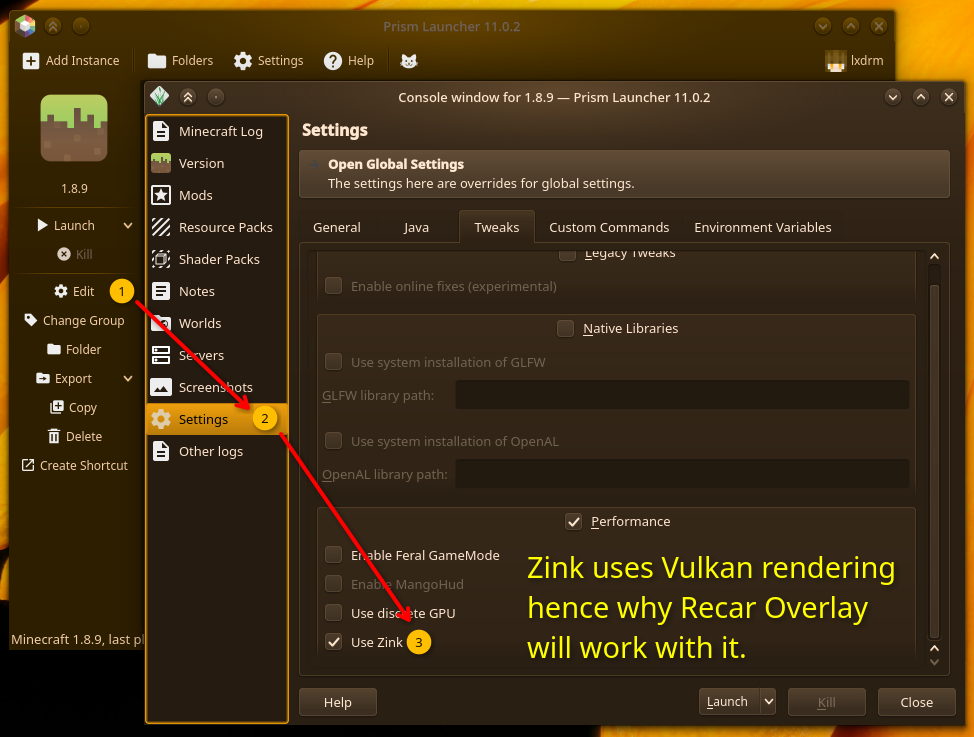
idk we havent faced many issues lol